Check out our Polycam 360 to Blender YouTube Tutorial
Capturing a 360 Environment in Polycam
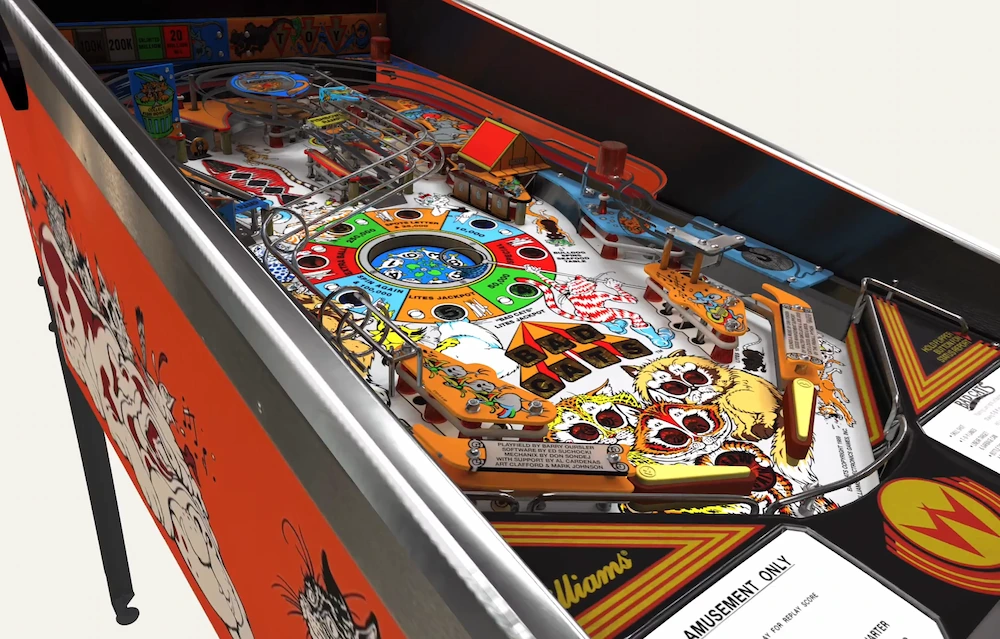
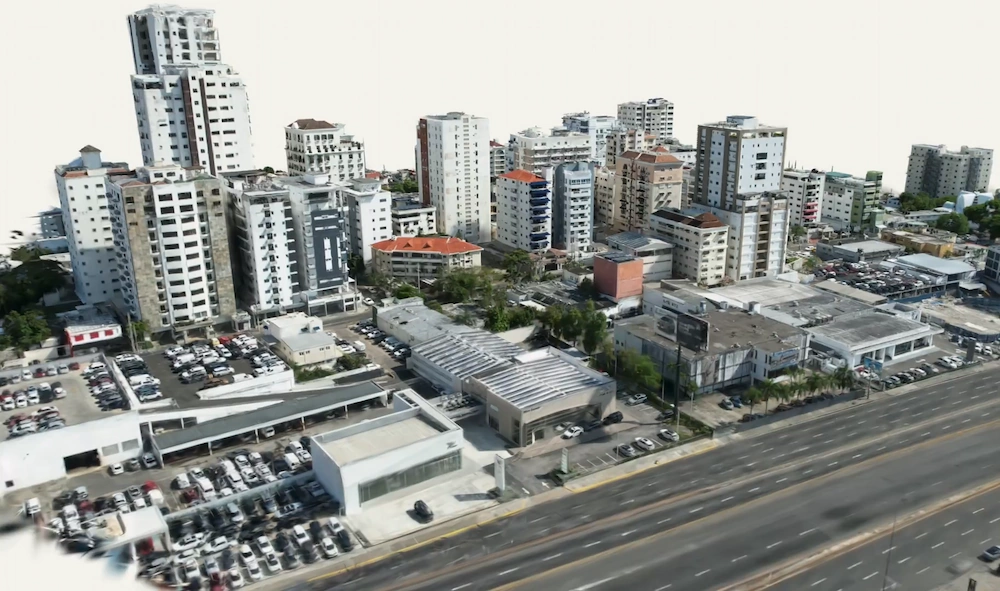
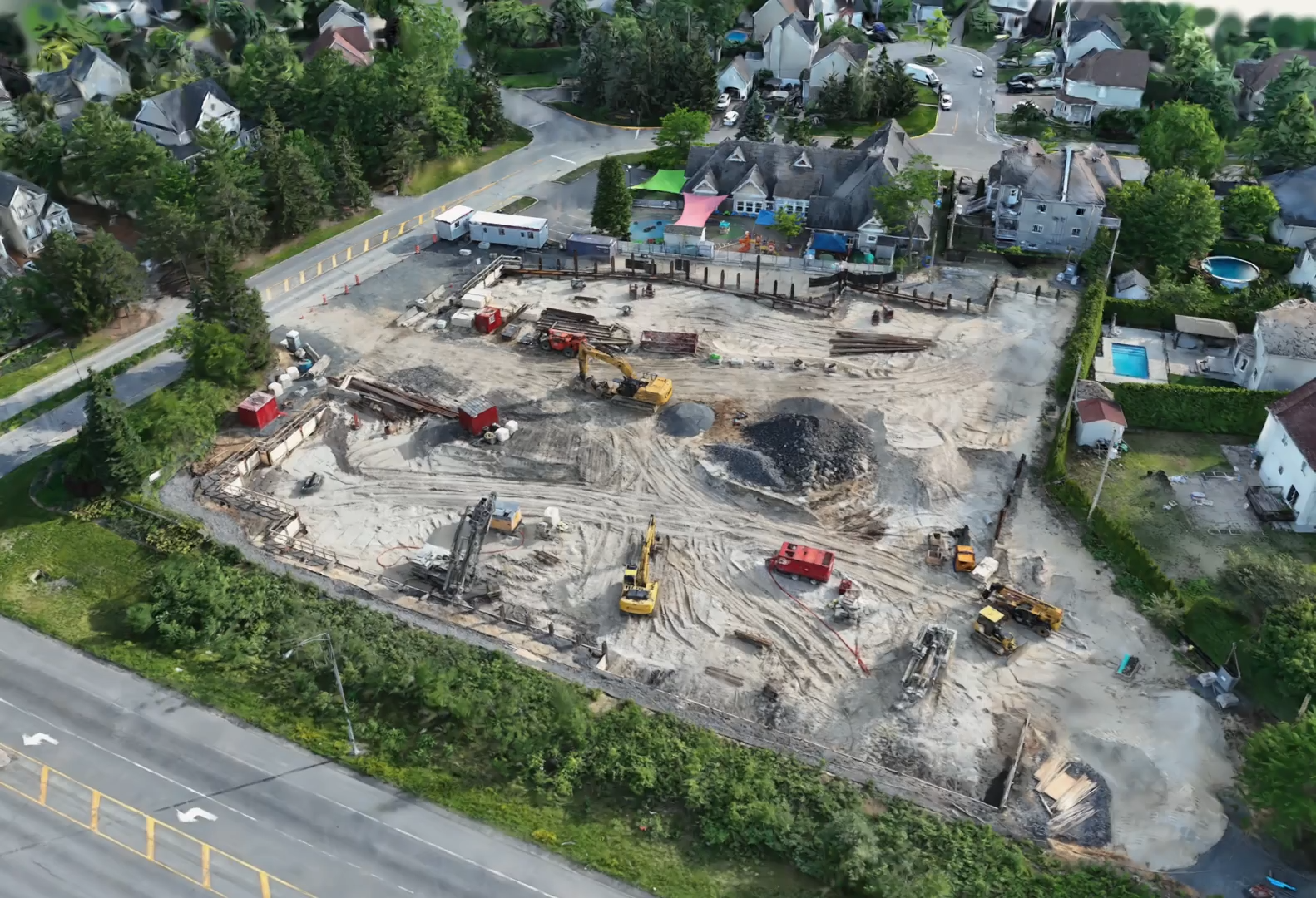
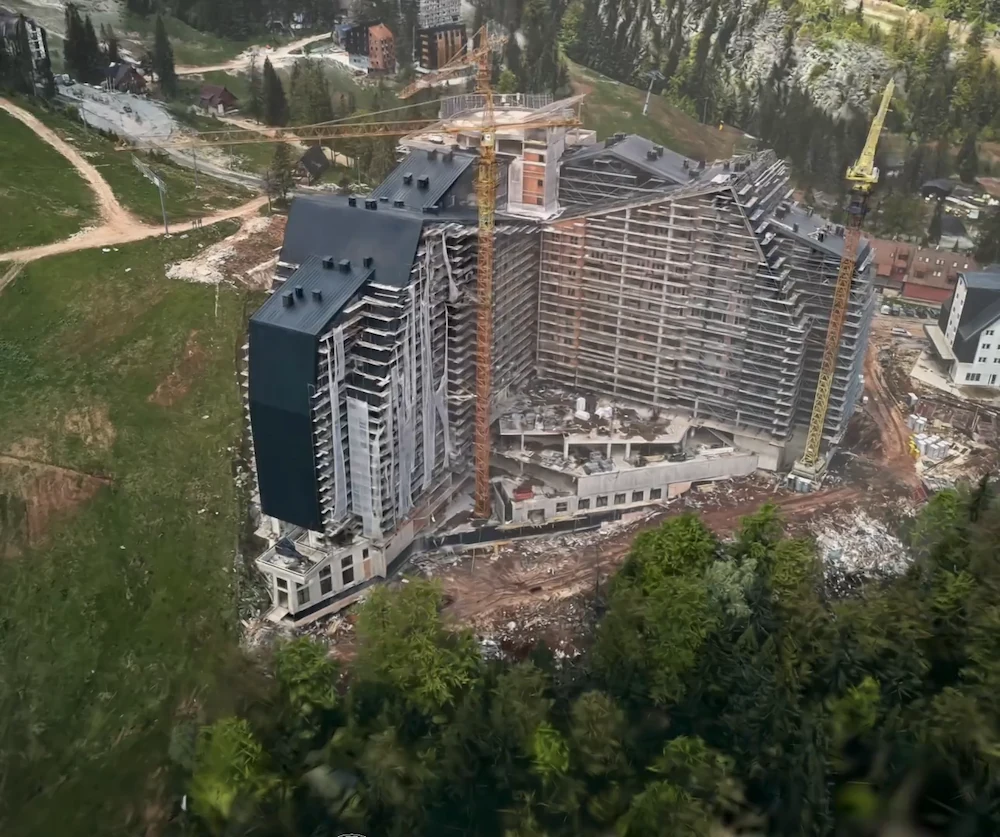
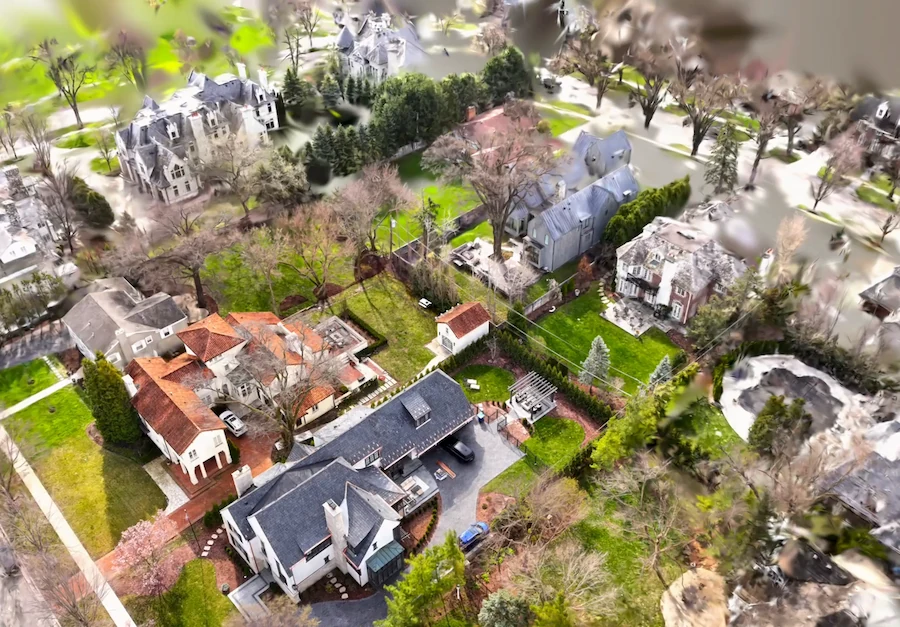
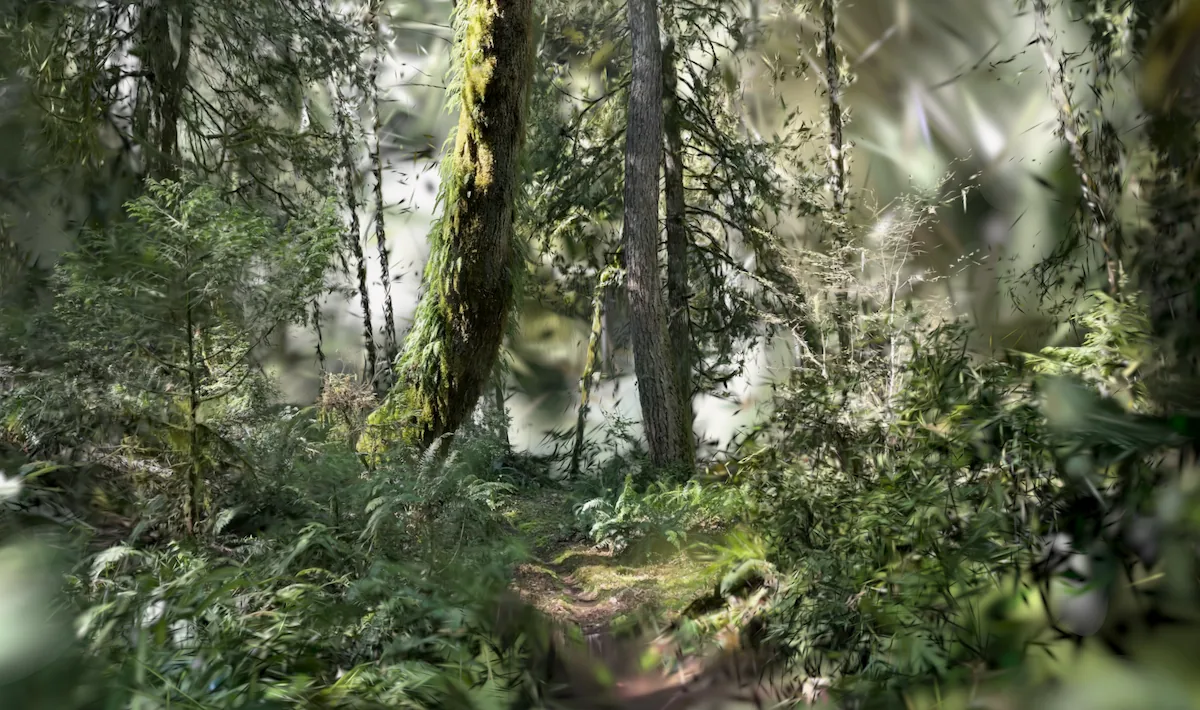
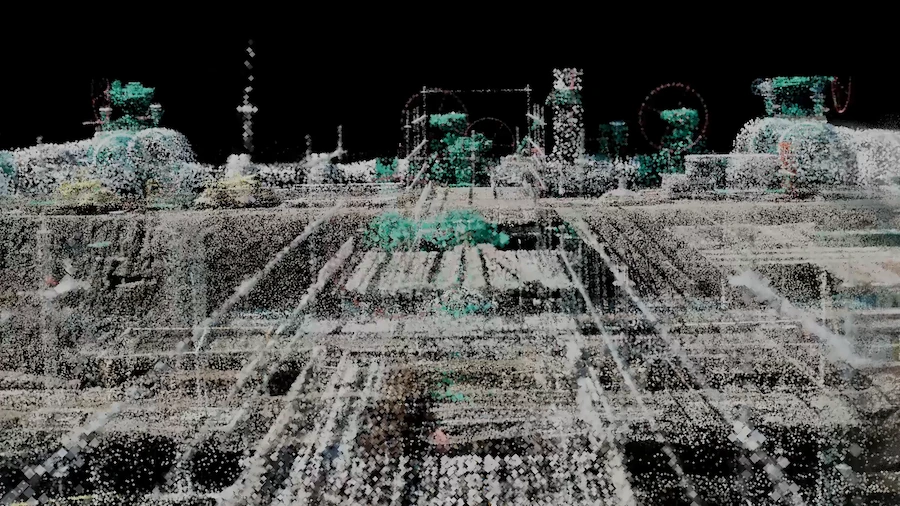
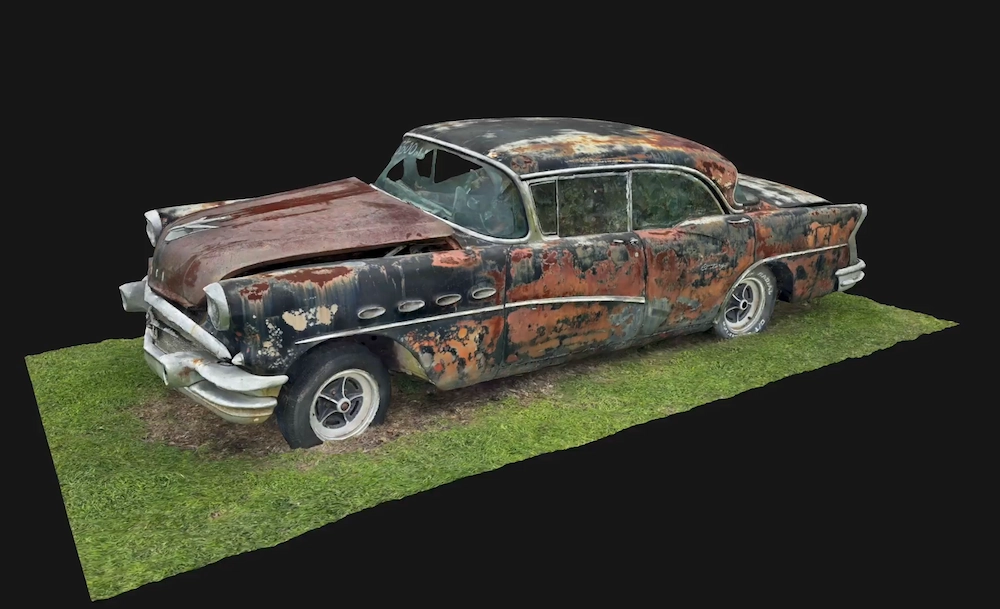
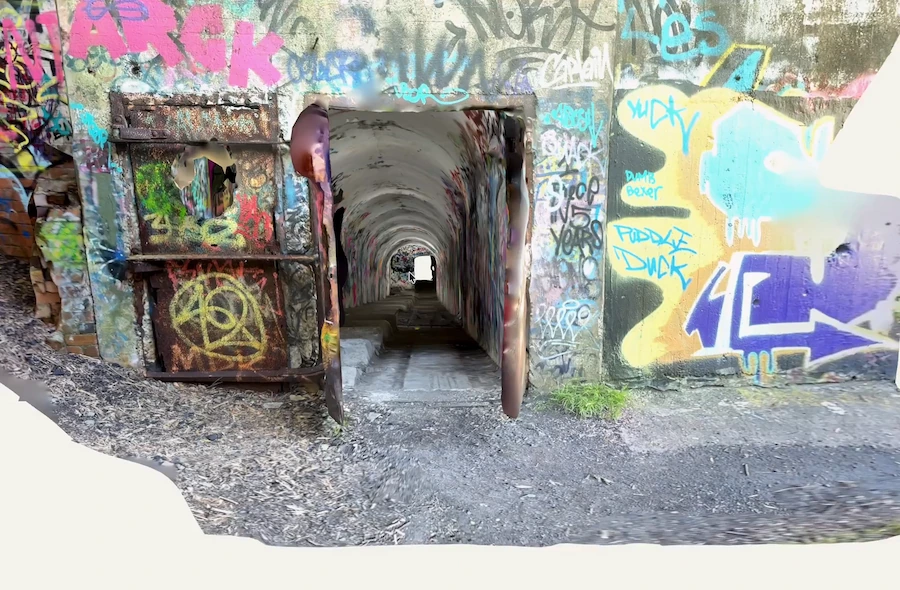
Hello everyone. In this video I'm going to show you how to bring your three hundred and sixty degree captures from Polycam into Blender to use as a lighting and background asset for your 3D work. Starting in the Polycam app, find an interesting place to take your three-sixty, and simply rotate in a circle. When the capture finishes processing, you can click on the Magic AI Fill to finish out the ground and sky. This will also upload it to your account so you can access it from a desktop computer. Go to the account and open the capture to export it. Choose where you want to save it.
Setting Up the Scene in Blender
Now, in Blender I'm gonna delete everything, and for reference I'll add in the monkey. Hit Control + three to subdivide it, and Shade Smooth. Go to the Shader Editor panel and select World from the drop-down menu. Here's where you can press Shift + A and type in environment texture. I'm also going to add a mapping node and a texture coordinate node. With two nodes selected, you can press F to connect them. Press the folder icon in the environment node to import your three-sixty. Go into Rendered view. In the mapping node, you can adjust the rotation of the environment to suit your needs. To help me focus on the light that the environment contributes to the model, I'm going to turn on transparency. If you can see, the model has a little bit of green reflected light being cast onto it, so you can add in a hue saturation value node and simply turn down the saturation if you wish not to have that. Another thing I recommend trying is turning the background strength down a little bit and adding in a light. With the strength down, you can use the light to highlight certain parts of the model that you want, while the environment acts as a large fill light, giving you soft shadows all around.
Creating an Environment Mesh in Blender
Moving on now, let's see how to create an environment mesh. So I'm gonna add in a UV sphere.
Then I will go over to the Materials panel and create a new material. In the Shader Editor, switch from World to Object. Press Shift + A again and type in image texture. Connect the node to the base color channel and select the image.
Using Node Wrangler Shortcuts
If you have the Node Wrangler add-on enabled in Blender, you can simply press Control + T to add the mapping and texture coordinate node.
Flipping the Sphere Normals
Now press Tab to enter into Edit mode and select all vertices. Then go to Mesh, Normals, and Flip.
Enabling Backface Culling
Then scroll to the bottom of the Materials panel, and under Settings, check Backface culling to on. Now to fix how dark it is, I'm going to replace the principled shader with a background shader. This will render the object as unlit. You can also connect the color output of the image texture node to the emissive slot on the principled shader, but you may need to play with specularity, roughness, and emission strength to achieve the same kind of unlit look. And there you have it, two different ways to use your three-sixty captures in Blender.