In this tutorial, you'll learn which Polycam export formats work best with SolidWorks and how to prepare scans for engineering workflows. This process covers STL imports, mesh scaling, mesh conversion, and preparing models for analysis and 3D printing.
Choosing the Best Polycam Export Format for SolidWorks
Among all the formats available on the Polycam app, there are four that are compatible and in common with SolidWorks: OBJ, STL, DXF, and PLY. I have realized STL and OBJ work the best, and I choose STL over OBJ, even though in this clip, I'm showing you OBJ and STL next to each other, and they're basically the same. But if you're going to 3D print your model, if you're gonna put your model through an analysis like FEA or CFD, STL is a better option than OBJ.
Check out our Polycam to SolidWorks YouTube Tutorial
Exporting and Sending the Scan to a PC
So in this video, I'm gonna export it as STL, and I'm gonna email it to my email address. Then I'm gonna download it onto my PC, where I can import it onto SolidWorks. So this is how I actually do it. Either I use WhatsApp or my email to just send it to my PC, and then it would take a few seconds. The file sizes are not that big, and I can get it on my PC. Right.
Importing the STL File Into SolidWorks
It's time to import the file onto SolidWorks. This is the STL file, and as you can see, it's a mesh format. Just like OBJ, STL is also a mesh format, and if you're wondering why the component is not actually meshed, it's because our SolidWorks view is not on shaded with edges. To see that, we can change it over here. Then you see the actual meshes.
Checking and Scaling the Model
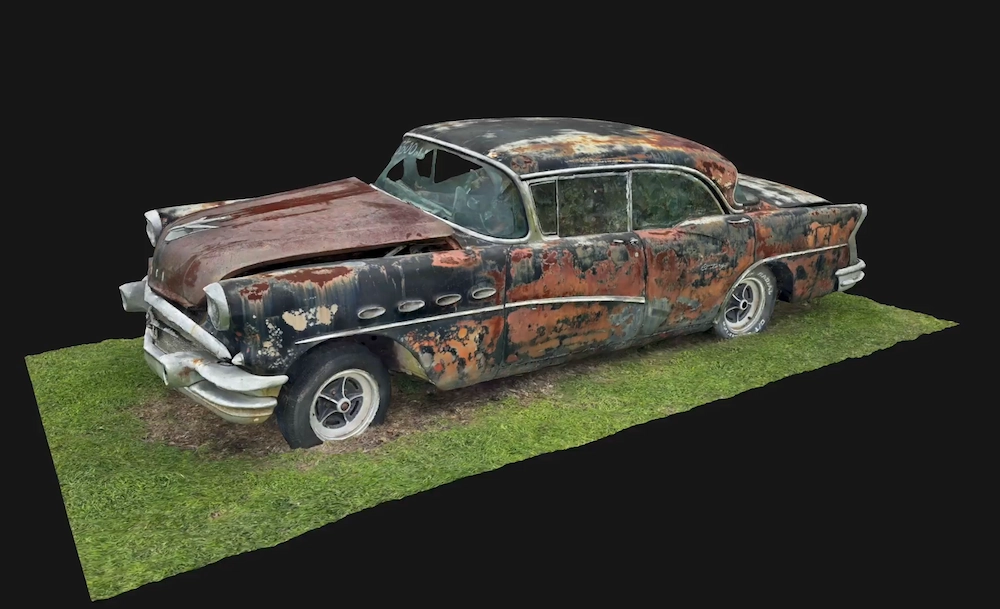
Before I continue, I would like to measure my component and make sure that the scale of the component is good before I actually turn it into a solid body. At least try to make it a solid body because it's not always possible. Right. So the component should be eight centimeters long and three millimeters wide. All I have to do is to go to the Evaluate tab, take the Measure tool, pick one of the points on the back, for example, this one, and take one of the points on the front, and see the distance. The distance is point seventy-nine twenty-five millimeter. It has to be eighty millimeters, so it's almost one to hundred. But we could make it more accurate, seventy-nine twenty-five. Let's do that, or just we can also do it roughly. We can go to Insert, go to Features, click on Scale, click on the object, and scale it by one hundred. Then this would be the car or the model. Measure again.
One of the points, approximately front back, seventy-nine millimeters, point thirty-eight. Yes. More or less, we can say the scale is right, and we can leave it at that.
Converting the Mesh Into a Solid Body
Now, I told you STL cannot be edited much, and it's perfect for 3D printing or FEA analysis, such-- or as well as FCFD because it's already meshed. But we cannot take it from here and build on top of it in SolidWorks, unfortunately. So we, we're gonna have to, uh, convert it into something a little bit simplified. How can we do that? If I bring your attention to the design tree over here, uh, you will see we have no surface body, nor we have no solid body folders.
We only have a graphic body folder. We can open it, and we see we have the whole component called Graphic Closed One. Right-click on that, and you'll see Convert to Mesh Body. Click on that, and make sure to check Group Faces into Faces. Sometimes it works, sometimes it doesn't. If it doesn't, it depends on the quality of your scan and meshing.
So let's just give it a shot. If it didn't work, I'll pick a simpler model. Right. We had some failures. Not that unexpected. Let's see how much of it is... Actually, I got the error, but it looks like it went through. So in this case, the quality was good enough. If in case it was not good enough and you had some mustard yellow errors over here, it makes sense to give your scanning process another shot.
Preparing the Model for Analysis
Uh, work with your lighting. Make your lighting a little bit diffused and softer so you get better meshes, more homogenic, so the process can go through. But in this case, luckily, it did go through, and we have our surface body. We can save it as SLDPRT. Again, you cannot do much on this part other than, uh, run analysis on it. Maybe if you wanna see the volume, you can measure that. It's a full solid body. We turn that into a solid body. We can get the accurate volume. This is the right value for the model. Thirty-three thousand nine hundred and eighty cubic millimeters is the volume of our car. Now, we can put this car into CFD and take it from there.