Scanning a Real-World Object With Polycam
This is Noodle. We're about to make her into a 3D with Polycam and then use Unity to make her wildest dreams come true. First, we have to make sure she stays still. Good dog. We'll use the Polycam app to scan her, and once her 3D is processed, we'll get on a computer to bring her into Unity. But first, belly rubs. Good girl.
Exporting the Scan for Unity
We'll go to poly.cam and click on her model. Click on Export in the top right corner. Unity accepts FBX files, but it doesn't always read the texture correctly, so we're gonna go with OBJ. I use Unity Hub to open Unity. We'll just make a new project, make sure it's 3D, give it an intuitive name, and then click Create.
Check out our Polycam to Unity YouTube Tutorial
Importing the Model Into Unity
The first thing we have to do is find where we saved the OBJ file, which I put on my desktop, and drag all of the files just straight down into Unity's project pane,
which is right here. Click on your model, which should be called Poly, and go over to the Inspector pane. If it doesn't open in the right tab for you, then just make sure you click on the Materials button and then go down to Extract. You can make a new folder to save the materials in or just select the folder that it's in. So now we're ready to put Noodle in our scene, and it's as easy as dragging her up into the scene window. We're gonna reset her location transform to just 0.00, so we can keep everything organized.
And then we're gonna change the main camera so that it's looking at her, so when we press play and look at our game, we can see what's going on. I'm gonna rename the files too so it's easier for me to keep track of them. This isn't strictly necessary for a small scene, but as you start to build bigger and bigger games or levels, good housekeeping becomes more and more important.
Adjusting Materials and Shaders
Now let's take a look at our model of Noodle. It doesn't quite look the way we want it to because we captured the scan with natural lighting baked in.
But Unity's also adding its own directional lighting to that. Now, Polycam will give us this purple normal map, which we could add to the standard shader by dragging it in. It'll also give us an occlusion map, and we could tweak the metallicness and the smoothness of this shader. But depending on the 3D that you've made, it might not make sense, and you might not be able to get the look that you want.
Using the Unlit Shader
So my favorite strategy to bring 3Ds into Unity is to use the unlit shader. Click on your material, go up to where it says Standard, click Unlit, and then Texture. Voila. That looks the way we want it to. The best thing about bringing Polycam 3Ds into Unity is then we can do things to them and combine them.
Importing Additional Objects
So now let's give Noodle her favorite toy. For a small object like this, we can put it on a white background and then use Polycam's object masking option to flip it over and to see all angles of it. Just make sure
you toggle Use Object Masking on before uploading. Now let's get back on the computer and download it from Polycam. Again, we're gonna export it as an OBJ, and let's bring it into Unity. I'm only going to bring in the OBJ, the material, and the texture, not the normal map or the occlusion map, because we don't need those for the unlit shader anyway. Once again, we're going to extract the materials, drag the model into the scene, and then make the shader unlit.
Adding Physics and Interaction
Now we can make them interact. Click Add Component and type mesh. We're gonna give it a mesh collider first. Then click Add Component again. We have to give it what's called a rigid body so that it can act with physics in Unity. We're gonna do the same thing to Noodle's model. And make sure that you click on Default, not Noodle. Default is the name of the actual model, and Noodle is just the game object that the model is nested under. If you're new to Unity, game object is just the name for anything that you have in your scene. You can think of them like folders. We're gonna make Noodle's toy drop out of the sky into her hands. Or, pause. The toy just went right through her, so looking at the error at the bottom of the Unity window, we can see we have to tick the Convex checkbox on the mesh collider component. There's one more thing we have to do so that this works properly. We have to check the Is Kinematic box in the rigid body component on Noodle. So close.
Creating Interactive Scenes
Here is when we can make Noodle's dreams come true. In the real world, she only has one zebra toy, but in Unity, she can have as many as we want. First, we should make a floor for everything to fall onto. I'm gonna go to Create, Plane, and just line it up. Then we're gonna make a new empty game object called Toys Raining to keep all of our duplicated toys in, and then we will copy them. Perfect.
Adding Environment Scans
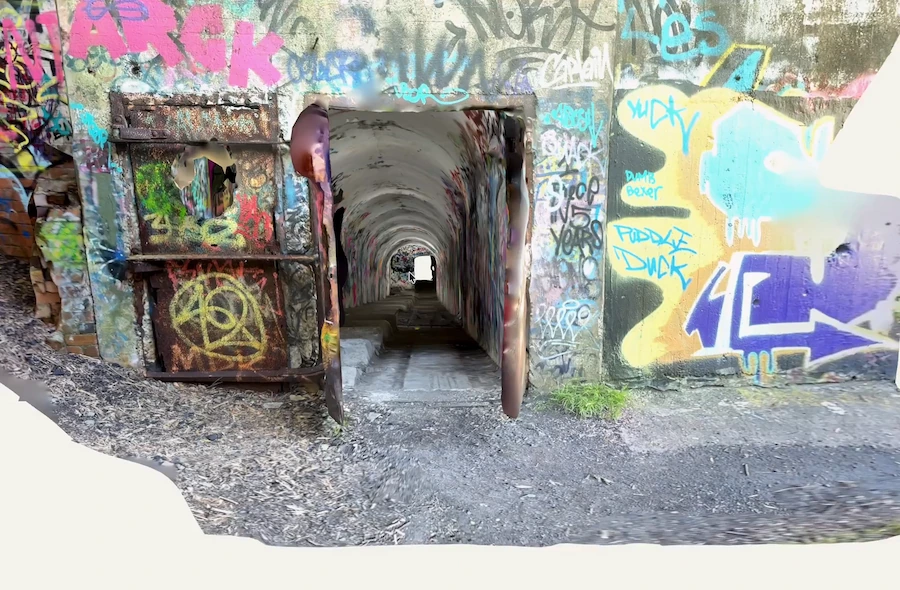
But our scene's looking pretty bare, and Polycam makes it so easy to scan whole rooms, so let's just do that really quickly. Once again, we'll export it, bring it into Unity, set the materials correctly, and add it to our scene. Make sure everything is lined up. Give the model a mesh collider and click Play. Now that's a happy dog. Thanks for watching. We're so excited to see what you make.