Material takeoffs from existing conditions have always followed the same basic sequence. Someone goes to the site with a tape measure and a phone, takes photos, makes a sketch, hands it to a drafter, the drafter produces a plan, the estimator measures off the plan, enters the numbers into Excel, and builds the estimate. Six steps. Four handoffs. By the time the numbers reach the bid, they've been touched multiple times and verified maybe once.
Most estimators will tell you the measurement and documentation step is where the real time goes. The calculation itself takes an hour. Getting the right numbers to put into it can take a day, and that's before accounting for anything that got missed or measured wrong along the way.
This article walks through a workflow where the takeoff data comes out of the same scan that produces the floor plan, what that output actually includes, and where it fits in a real estimating workflow.
Why Manual Takeoffs Are the Slowest Step in the Estimate
Every handoff in the traditional pipeline is a chance for something to drift. A wall grows by an inch between the sketch and the plan. A fixture gets missed between the plan and the spreadsheet. A square footage number gets rounded the wrong way between the spreadsheet and the bid.
None of those errors are dramatic on their own. But on a fixed-fee bid, they add up, and they add up in one direction. Underestimated material comes out of the contractor's pocket, not the client's. The margin on a remodel or tenant improvement job isn't won in the office. It's lost there, slowly, through accumulation of small measurement errors that were always going to happen when the same information gets transcribed four times.
The Modern Workflow: Scan, Report, Estimate
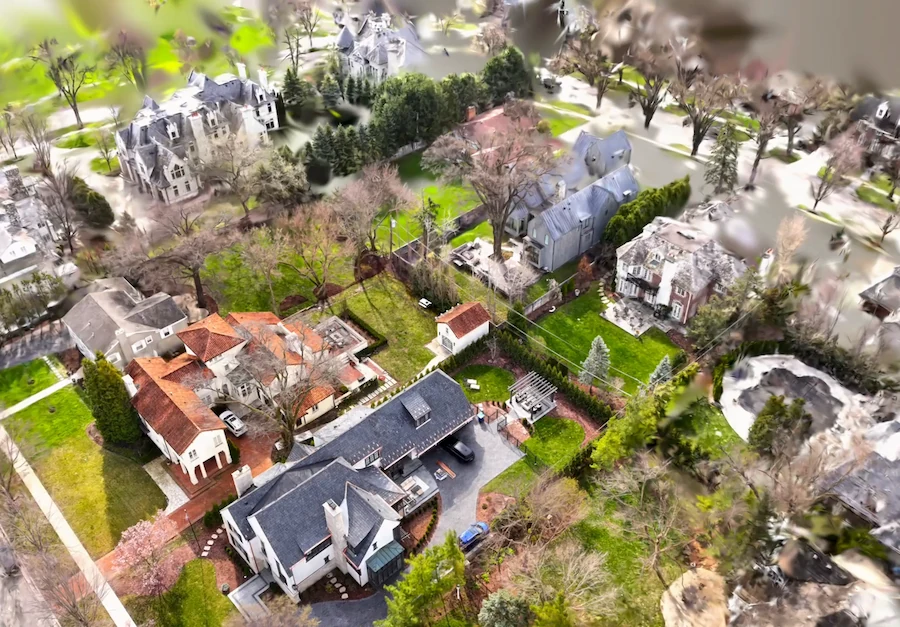
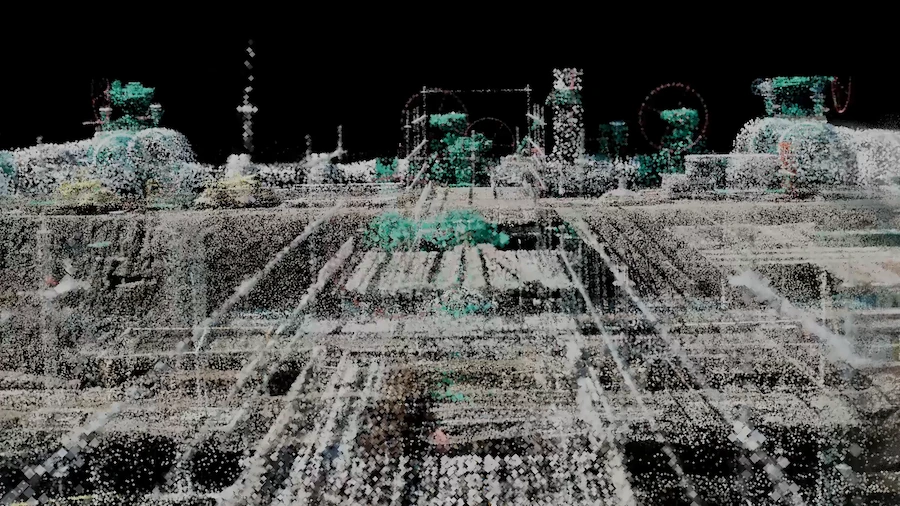
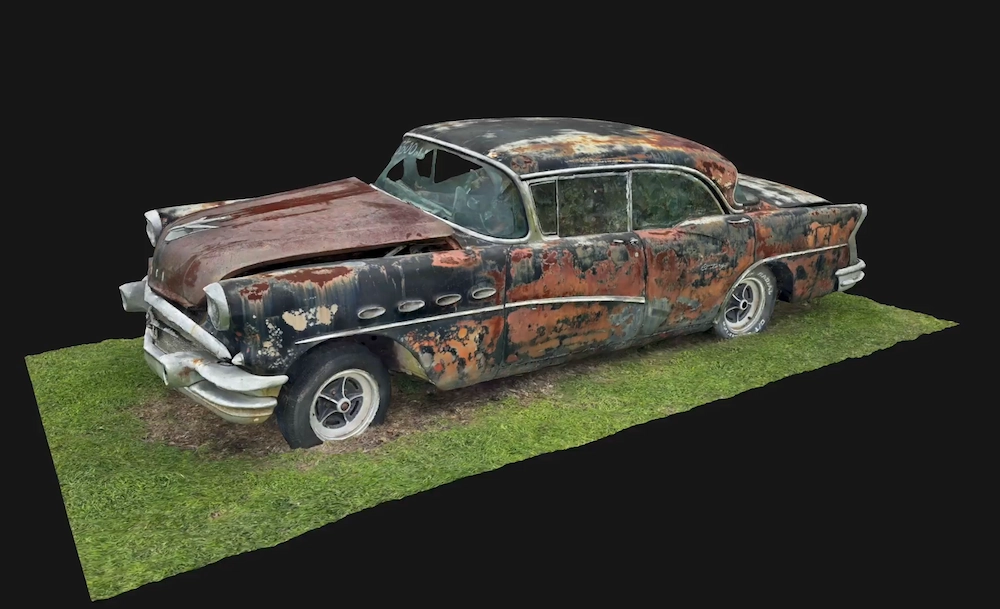
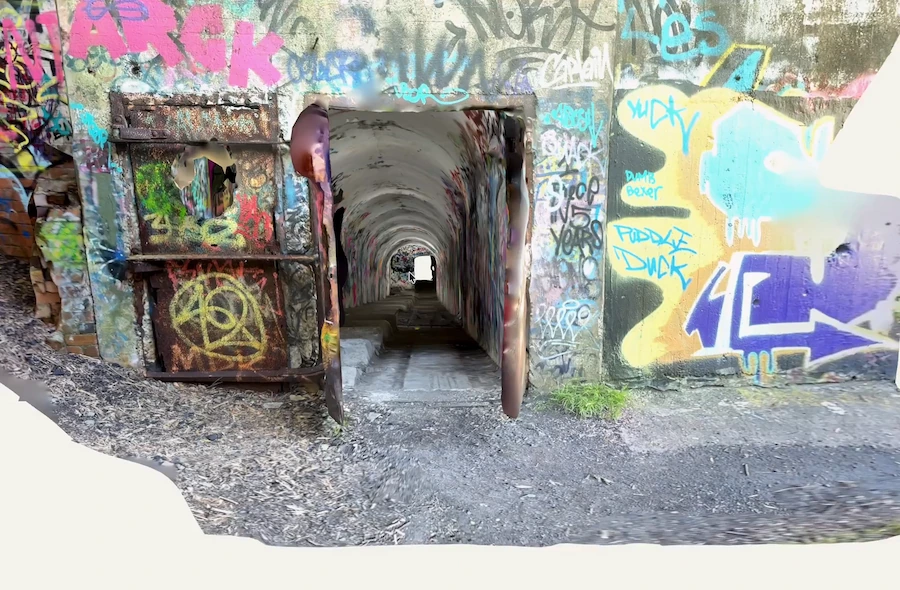
The capture step works the same way as any phone-based scan. Open the app, walk the room, and the AI detects walls, openings, fixtures, and furniture in real time as you move through the space.
What's different is what comes out. The same scan generates the floor plan, the 3D model, and an AI Spatial Report at the same time. The spatial report includes room-by-room square footage, wall surface area, and a fixture inventory, all pulled from the same verified field geometry that produced the floor plan.
That report exports as a PDF and drops directly into Excel for takeoff math or into Procore for project documentation. The numbers come out structured and ready to use. No reformatting, no re-keying, no cleaning up someone else's field notes.
The estimator's job shifts from measuring off a plan to applying unit costs to numbers that are already there. That's a faster task, and it's one where there's a lot less room for the kind of small errors that erode margin.
The capture covers all three at once: the estimate, the bid package, and the project documentation.
What the AI Spatial Report Actually Includes
It's worth being specific about what the report contains, because the usefulness depends on whether the numbers map to the line items you're actually pricing.
Room-by-room square footage is usable directly for flooring, paint, ceiling, and tile takeoffs. Each room comes out as its own line, so you're not averaging across a whole floor or manually breaking a plan into zones.
Wall surface area feeds drywall, paint, wall covering, and finish takeoffs. Again, broken out by room, so the numbers slot into a line-item template without rework.
Fixture inventory gives you counts of windows, doors, plumbing fixtures, and detected furniture. Useful for trim, hardware, and demo scope where you're pricing by unit rather than by area.
The linked 3D model stays available after the site visit. If a number on the report needs verification or a question comes up after you're back at the office, you can pull additional measurements from the model without scheduling a return trip.
The report is a structured document, not a screenshot. Every number is something you can paste, reference, or adjust without going back to remeasure.
How Estimators Actually Use the Output in Excel and Procore
In Excel, the workflow is straightforward. Copy the room-by-room square footage and wall surface area from the spatial report into your existing takeoff template, apply unit costs, and build the line-item estimate. Because the report is structured, the numbers transfer cleanly without reformatting a hand sketch or interpreting someone else's field notes.
In Procore, the spatial report attaches to the project record alongside the floor plan and the 3D model. The takeoff data, the documentation, and the visual reference all live in the same place, which matters when a project manager or sub has a question three weeks into a job.
For bid packages, subs receive the spatial report alongside the floor plan. They're pricing against verified numbers from actual field conditions, not estimating off a sketch that may or may not reflect what's in the building. That tends to produce tighter, more reliable bids from the subcontractors you're working with.
Where This Workflow Fits and Where It Doesn't
For renovation estimates, residential and light commercial remodels, tenant improvement bids, and facilities maintenance scoping, this workflow fits naturally. It's particularly well suited to finishes: paint, drywall, flooring, tile, demo scope, and fixture counts are all line items the spatial report feeds directly.
There are also jobs where it's not the right tool. Structural steel takeoffs, MEP system pricing that requires engineered drawings, and ground-up new construction where there's no existing building to document all involve information that a phone scan isn't designed to capture.
The honest framing is that this workflow replaces manual measurement and data entry for the line items it covers. It doesn't replace the estimator's judgment, the unit cost database, or specialized takeoff software for the trades that need it. For the trades that need specialized takeoff software, Polycam feeds that process rather than replacing it.
Test It on a Real Job
Polycam has a 7-day free Business trial at poly.cam/pricing. The most direct way to evaluate it is to scan one real space, generate the AI Spatial Report, and drop the numbers into your existing takeoff template.
Scan one real space, drop the numbers into your existing template, and see how it compares to your current process. Most people have a pretty clear sense after the first scan whether it fits how they work, and if the time saved is real, the workflow tends to stick.