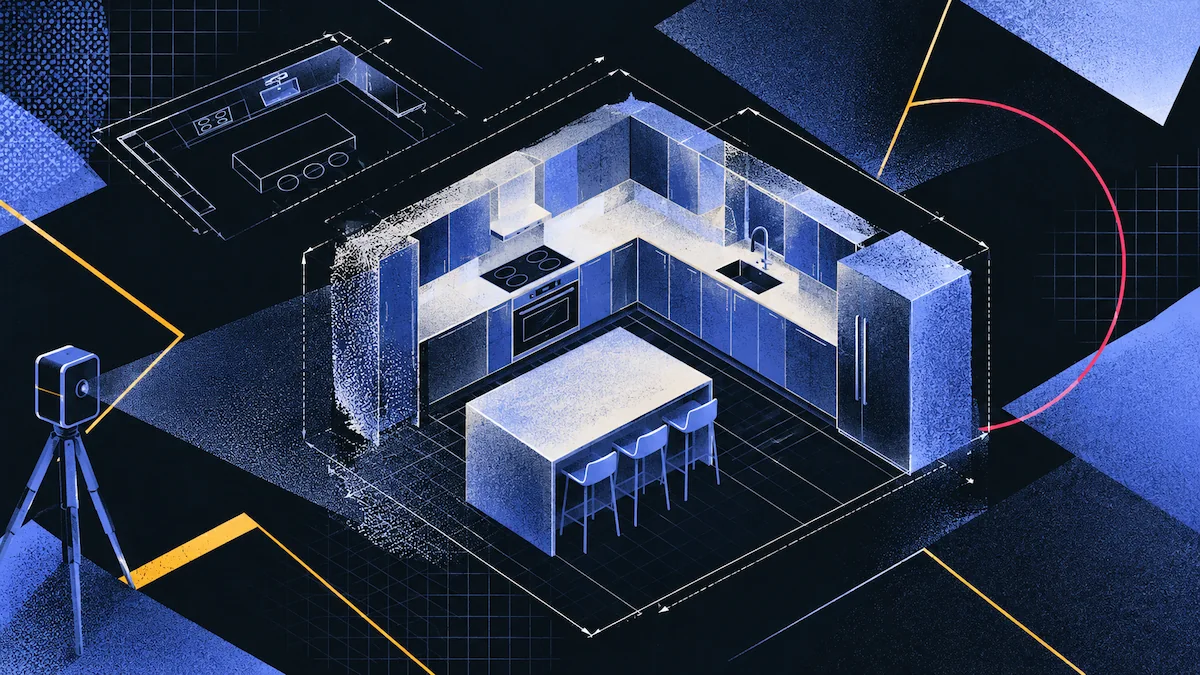
Start by scanning the kitchen with Polycam. Use the Spatial Report to review the current layout, mark anything that cannot be moved, then sketch your new layout on top and check the measurements. The scan handles the measuring, which usually takes the most time. This guide is for designers and remodelers who do this often, and it highlights common mistakes at each step.
The Sequence
| Step | What you are doing | What it produces |
|---|---|---|
| 1. Capture | Scan the room with Polycam, including appliances and openings | Floor plan, 3D model, Spatial Report |
| 2. Read | Take existing dimensions and the inventory from the report | Room sizes, appliance and cabinet sizes |
| 3. Fix | Identify what cannot move | The constraints your layout works around |
| 4. Draw | Edit the plan into the layout you want | A proposed plan over a measured base |
| 5. Check | Test the distances against planning guidelines | A layout that works to use, not just on paper |
| 6. Hand off | Export for whoever quotes or builds it | DXF, PDF, CSV |
Step 1: Capture the Kitchen
Kitchens are less forgiving of a quick scan than other rooms because the important details are often hidden.
Walk slowly around the perimeter, angling your device inward. Spend extra time scanning the base units, not empty walls. Make sure to capture cabinets, counters, and appliances from angles that show their fronts, not just the tops.
Scan each appliance separately. The fridge, oven, stove, and sink are key reference points, so record each one as its own object, not just part of a wall.
Be sure to scan all openings. Doors, windows, and any gaps to other rooms affect the layout. For example, a window will determine where you can or cannot place a wall cabinet.
Make sure to scan the corners and the floor line. Corner cabinets are often where layouts run into problems, and the details there show if your design will fit.
Before you leave, double-check your scan. If you miss a cabinet, you can quickly rescan it while you are still there. If you miss it and leave, you might end up planning your whole layout around the wrong information.
Kitchens have many small details a mesh scan can miss, but you will need them later. This includes things like boiler and appliance model numbers, socket and switch locations, and pipes behind base units. Virtual Walkthrough lets you retrace your scan and view the original photos where you took them, so you can still read these details even if the 3D model doesn't show them. It works with any Space mode scan, so your original room scan includes this feature. This can save you a trip back to the site when you need to check something.
Step 2: Read What You Already Have
A Polycam Spatial Report returns the room’s floor area, perimeter, ceiling height and wall area, then lists the contents by category. Fixtures cover the cabinets and the sink. Appliances cover the fridge, oven, and stove. Each entry includes width, height, and depth, and each sits on the plan where it actually is.
This report gives you all your starting measurements in one place: the depth of the base units, the width of the fridge opening, and the distance from the sink to the cooktop. Write down the measurements for anything you plan to keep, since these set fixed dimensions for your new layout.
Double-check anything that needs to fit precisely. Measure the space for a new appliance in several places and use the smallest measurement, because older walls are often not perfectly straight.
If the client is keeping an appliance, scan the actual unit in Object Mode instead of relying only on the detected dimensions. The detection gives you a starting point, but a close scan of the real range or fridge includes details like the handle and the back depth, which can affect whether a door opens properly near an island.
You can combine these two scans. The Scenes feature lets you place multiple scans in one space, which is useful for adding furniture or appliances to a room. Import both the Space mode mesh and the Object mode scan into one scene, then move, rotate, and scale the appliance as needed. The snapping feature helps align it to the floors and walls.
Designers will use the swapping feature often. When you replace one object with another from your library, it keeps the same position, size, and rotation. This way, you can try a different range in the same spot with just one click instead of starting over.
Scenes work on web and iOS, but not on Android. Also, you cannot import floorplan models or Gaussian splats into a Scene, so you will use this feature alongside your plan, not inside it. The free version allows one scene with three layers, Basic allows three scenes with five layers, and Business has no limits.
Step 3: Mark What Cannot Move
Before changing anything on the plan, mark all the constraints. These affect the layout cost, not just how it looks. If you skip this step, you may have to redraw the layout later.
The plumbing wall decides how far the sink can travel. Moving a sink across a room is a different job from sliding it along the same wall, and it often decides whether you are doing a refit or a rebuild.
The extraction route decides where the cooking surface can go, since a hood needs somewhere to duct to and the shortest run to an outside wall usually pins the cooktop.
Structural walls decide whether the room can change shape at all. No scan can tell you whether a wall carries load, so treat any wall you want removed as an open question until a builder or engineer answers it.
Windows fix where wall cabinets cannot go, and they set the light, which is worth keeping over a prep area.
Door swings take up floor space. Mark them on your plan, since discovering a door opens into a new island is a common mistake found too late.
Add comments to your scan to mark all these constraints before you start drawing. Each note is attached to the exact spot it refers to and shows whether the issue is resolved. The areas without notes are where you have design flexibility.
Step 4: Draw the New Layout
The Floorplan Editor in Polycam turns your scan from a simple record into an actual plan.
You can move walls and see the 3D model update in real time. You can also draw in new walls or units, even if you plan to remove or price them later. Since the plan, 3D view, and Spatial Report are all linked, any change you make updates everywhere automatically.
Detected appliances and fixtures can be repositioned, resized, reoriented, or swapped for library assets, which is how you test moving the fridge without moving the fridge.
While editing, set the wall thickness to match the actual construction. This is important because wall thickness affects the area calculations used for your quotes.
Try out different layout options instead of settling on one right away. Draw the layout you prefer, check it against the required distances, then draw another layout based on your constraints and compare them. Once you have the base measured, each option takes only a few minutes to create.
The Floorplan Editor is available with Business and Enterprise plans, which cost $400 per user per year. If you need to measure a kitchen soon, try the 7-day free trial. This lets you see if drawing options over a measured base changes your workflow, and you can test it on a real project instead of a demo.
Step 5: Check the Distances
Run the drawn layout against the National Kitchen and Bath Association’s planning guidelines. They are recommendations, not requirements, and local codes may apply on top.
| Check | Guideline |
|---|---|
| Work aisle, one cook | At least 42 inches |
| Work aisle, multiple cooks | At least 48 inches |
| Walkway | At least 36 inches, or 42 where two meet at right angles |
| Work triangle legs | 4 to 9 feet each, no more than 26 feet in total |
| Traffic | Major routes should not cross the triangle |
| Island intrusion | No triangle leg crossing an island by more than 12 inches |
| Refrigerator and microwave landing | 15 inches of counter |
| Doorway clear opening | At least 32 inches |
| Seating clearance | 32 inches to a wall with nobody passing, 36 to edge past, 44 to walk past |
Measure the aisles between the fronts of counters, tall cabinets, and appliances, not just between the walls. The space between the fronts is what people walk through, and this check often reveals problems with island layouts.
Separately, check whether the project falls under accessibility provisions. If it does, the adopted code sets kitchen clearances by layout shape rather than cook count and adds requirements around appliance approach and reach that the NKBA guidelines do not cover. Those apply only where the administrative authority has adopted the relevant scoping provisions, so confirm with your building department rather than assuming either way.
Step 6: Hand It Off
Ask them first, because the answers differ more than you would expect.
A DXF suits anyone working in CAD, arriving as editable linework rather than a picture. A PDF suits conversations and quotes. A CSV of room areas drops into a spreadsheet for costing.
Include the list of constraints when you send the plan. The layout isn't complete without notes, such as whether the sink is on the plumbing wall or whether the wall between the kitchen and dining room still needs to be checked.
When someone is preparing a quote, send them the scan along with the drawing. A public link lets them view it in a browser without needing an account or software, so a fitter can review the room from their van before giving a price. This saves both of you a site visit and ensures the quote is based on the real room, not just photos.
Expect a cabinet supplier to survey before manufacturing whatever you send. Your plan sets the design and the budget; their survey sets the cutting list.
FAQ
How do I plan a kitchen remodel layout from a 3D scan?
Scan the room including appliances and openings, read the existing dimensions and inventory off the Spatial Report, mark what cannot move, then draw the new layout in the floor plan editor and check it against planning guidelines for aisle widths and clearances.
What does a kitchen scan give me?
Room floor area, perimeter, ceiling height and wall area, plus an inventory of the cabinets, sink, fridge, oven and stove with a width, height and depth for each, positioned on the plan.
How wide should a kitchen aisle be?
At least 42 inches where one person cooks and at least 48 inches where more than one does, measured between the counter frontage, tall cabinets and appliances. A walkway that is only a route through the room can be 36 inches.
Can I draw a new layout over the scan?
Yes. The floor plan editor lets you move walls, draw in walls and units that do not exist yet, and reposition or swap detected appliances, with the 3D view and the area figures updating alongside.
What should I identify before I start designing?
The plumbing wall, the extraction route, any wall that might be structural, the windows and the door swings. Those constraints decide what a layout costs, and marking them first stops you designing something twice.
Is the work triangle still the right model?
It works as a quick check on a conventional layout, though it came from a 1940s construction study built around one cook. Galley kitchens cannot form one, and open plans with several cooks are usually better served by zone planning.
Can a scan tell me if I can remove a wall?
No. It gives you the wall’s position and thickness. Whether it carries load is a question for a structural engineer or a builder who can open it up.