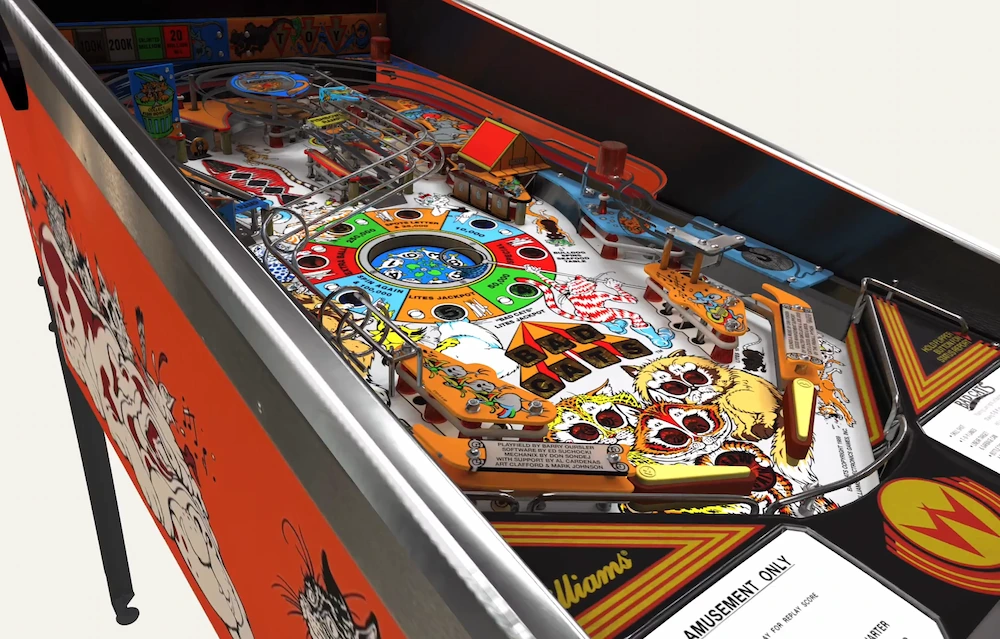
You scan a salvaged pedestal sink to drop into a bathroom layout, export the mesh into your CAD program, and it arrives about a thousand times too big.
Getting a photo scan into SketchUp or CAD at the right scale mostly comes down to the capture. Photos don't record size, so a photogrammetry model starts without one until an AprilTag gives it one. In SketchUp, the Polycam extension brings the capture in straight from your Polycam library, so there's no file to export. Other CAD programs work from an exported file, and some formats don't carry units, so the program can guess wrong when it opens one.
For Business and Enterprise, a printed AprilTag beside the sink sets the size at capture: Polycam reads the tag and scales the model automatically, typically with better than 99% accuracy. Units are still your call in the import dialog, so measure one edge you know in Polycam and again in your program before you draw anything from the model.
Key Takeaways
- The scale has to be right in two places: on the capture, and again after import.
- On Business and Enterprise, only haveone printed AprilTag in at least eight photos to capture the scale automatically, typically to better than 99% accuracy.
- If an exported model opens at the wrong size in a CAD program, check your import units in Polycam first.
- Measure the same known edge in Polycam and in your program before you draw anything from the model.
- What You'll Need
- Polycam on a Business or Enterprise plan for automatic scaling, on iOS, Android, or the web
- One printed Polycam AprilTag sized to the object
- SketchUp or your CAD program
How to Bring a Photo Scan Into SketchUp or CAD at the Right Scale
The first half happens in Polycam, so the model is right before it ever leaves. The second half happens in your program, where you confirm it stayed right.
- Pick the tag size. Match it to the object. Small objects shot at close range take the 4 × 6 in (A6) tag. Window-sized objects and anything larger need at least a 6-inch printed scale, so 8.5 × 11 in (A4) or bigger. Between the two, take the larger tag.
- Print it at 100% and check it. Make sure no scaling option such as "Fit to page" is on. Lay a ruler along the printed scale line and reprint if the length is off.
- Keep it flat in the scene. Back the tag with cardstock or foam board.
- Capture with the tag in at least eight photos. Put it where you'll see it naturally as you circle the object, such as on the bench beside it. When you look back through the photos, the tag should be sharp, corners and all, in at least eight of them taken from different sides. The images cannot be blurry.
- Measure a known edge in Polycam. Once processing finishes, put the Ruler on the edge you measured by hand. If the two don't agree, fix it here with the Rescale tool, because a problem carried into SketchUp is harder to trace.
- In SketchUp, use the Polycam extension. Install it from SketchUp's Extension Warehouse and sign in with your Polycam account. Your Polycam library then opens inside SketchUp, where you can search it and bring in one capture or several at once. You can skip the export and import steps that follow and go straight to measuring the edge again in SketchUp.
- For other CAD programs, export in a format they read. Polycam exports meshes as OBJ, GLB, FBX, DAE, STL, and USDZ, and point clouds as DXF, PLY, LAZ, XYZ, and PTS. Pick the one your program imports cleanly, and if its import dialog asks for units, set them before you open the file.
- Measure the same edge again. In SketchUp, use the Tape Measure tool on the edge you checked in Polycam. In a CAD program, use its distance tool. If the numbers match, the whole model is at scale, and you can start drawing from it.
Why a Photo Scan Comes Into SketchUp or CAD at the Wrong Size
When an exported model opens in a CAD program at the wrong size, look at the import units first, since some formats don't carry them and the program has to guess. If the units are right and the model is still off, the scan itself is off. Go back to Polycam, check the tag and your known edge, and fix it there before you export again.
If the model comes in on its side, the axis setting doesn't match the program's default axis. Some programs treat a different axis as "up." Rotate it into place, or change the axis settings in Polycam prior to exporting.
When to Use Rescale Instead of a Tag
Automatic scaling only runs on Business and Enterprise, so on any other plan a tag gets photographed like any other object and the capture won't scale. For those captures, and for any you've already taken without a tag, the Rescale tool sets the scale by hand. Measure the longest distance you can on the real object, then set two points on the model to that distance. A long reference spreads any error across the model far less than a short one, and exports keep the corrected scale.
Drawings out of date?
FAQ
Why is my 3D scan the wrong size in SketchUp?
Measure the same known edge in Polycam and in SketchUp. If you brought the model in as a file rather than through the Polycam extension and only SketchUp is off, check the units in the import dialog.
How do I scale a 3D scan to real size?
On Polycam Business and Enterprise, put one printed AprilTag in the scene and get it in at least eight photos. The model scales automatically, typically to better than 99% accuracy. On other plans, or without a tag, use the Rescale tool to set two points on the model to a distance you measured by hand.
What file format should I use to get a 3D scan into SketchUp?
You may not need a file at all. The Polycam extension for SketchUp brings captures in from your Polycam library without an export. If you'd rather import a file, Polycam exports meshes as OBJ, GLB, FBX, DAE, STL, and USDZ. Pick one your version of SketchUp imports, and check the units in the import dialog.
Can I use a photogrammetry scan for CAD drawings?
Yes, as a measured reference to draw over. With a tag, the model is typically better than 99% accurate, which is enough for layout and design work. For anything you'll fabricate or order to a tight tolerance, check the critical dimensions on the real object with calipers or a tape.