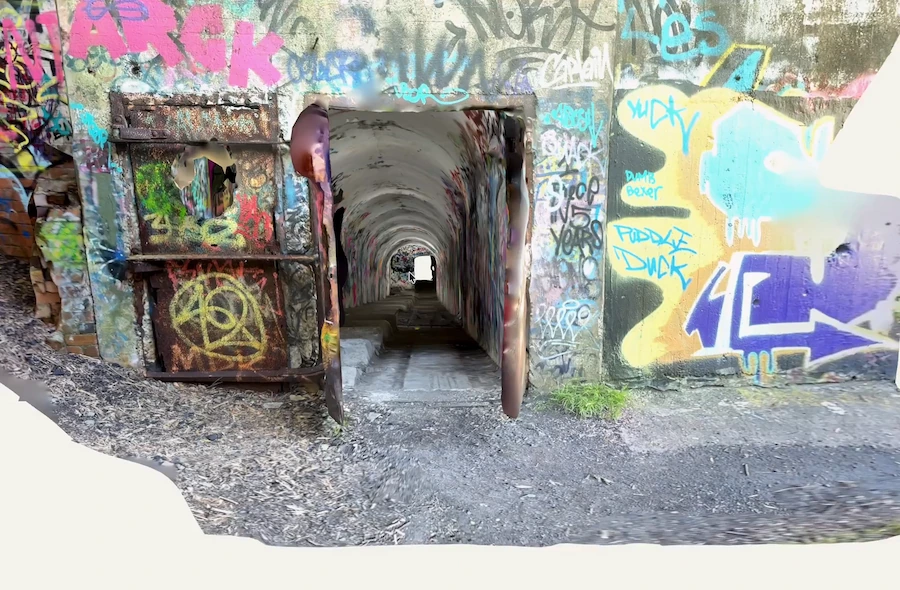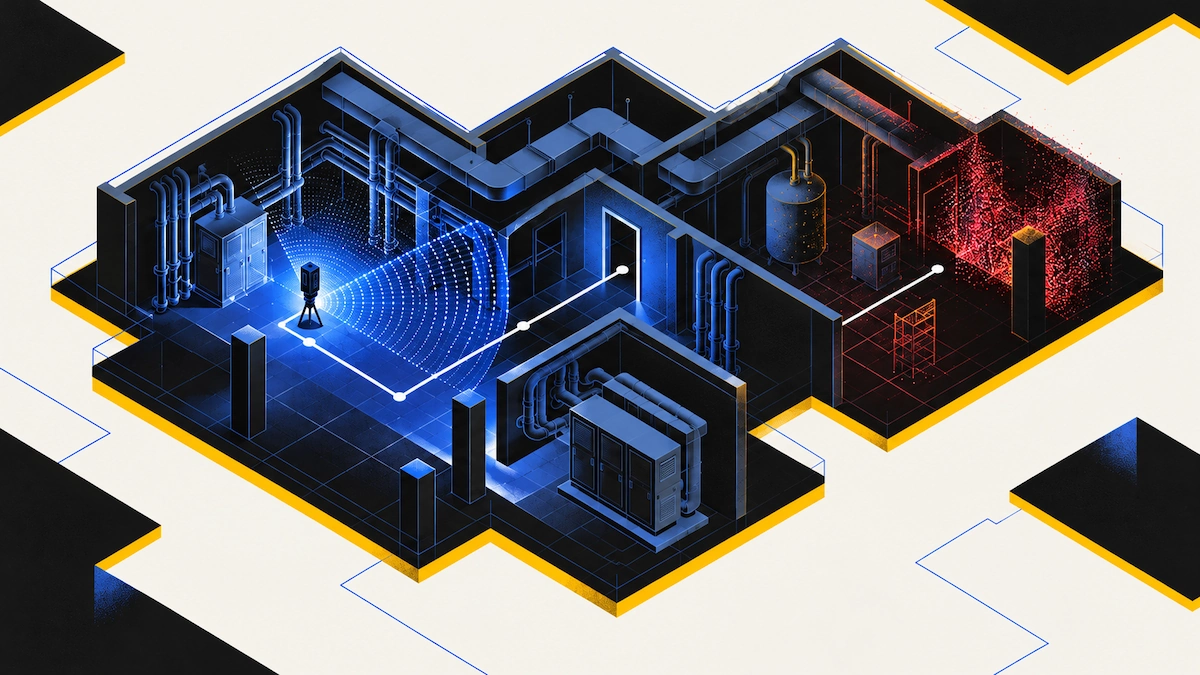
Basements, mechanical rooms, and buildings where the power isn't on yet are some of the spaces AEC teams most need to document, and some of the hardest to scan. Polycam's Space and Floorplan modes use the iPhone's LiDAR sensor, which sends out infrared light, so you can still get a floor plan in a darker space.
Light still makes a difference in Polycam. It improves measurement accuracy and the textures on the 3D model. This guide covers which app handles poor light better, and how to light a space so you leave with a usable model on the first visit.
Key Takeaways
- Polycam’s Space and Floorplan modes measure geometry with the iPhone’s LiDAR sensor, which emits its own infrared, and process the result on the device.
- On iPhones without LiDAR, Space mode creates a 3D scan from camera images, with no floor plan. Low light affects it more, so good lighting is essential.
- Pix4D reconstructs models with photogrammetry and uses LiDAR to supplement it. They recommend that, for quality captures, every image still needs visible features.
- Dark walls and ceilings absorb infrared, so dim rooms with dark finishes can fail in any phone scanner. We recommend having a light source before you scan.
Why Low Light Breaks a 3D Scan
Every phone scanner captures images alongside depth, and low light degrades those images and the software’s ability to align scan data. Any method that builds 3D shape from photos depends entirely on those images, such as Space mode on non-LiDAR devices and Pix4D, because it matches features across overlapping frames.
LiDAR creates its own infrared light, so it doesn’t need ambient light to work. But dark surfaces absorb this infrared, so in a dim room with dark walls, the sensor might not get enough signal to build the 3D scan.
AEC teams often face both of these problems in places like basements, mechanical rooms, above-ceiling spaces, and interiors without power.
Polycam vs. Pix4D in Low-Light Interiors
Polycam
If you use an iPhone Pro or iPad Pro, Space and Floorplan modes rely on the LiDAR sensor, which uses infrared pulses to create a point cloud. This data forms both the 3D scan and the 2D floor plan. Since the sensor provides its own light, you can still get a floor plan in darker areas, and you can process the plan on your device to check if a dim room was captured while you’re still there.
On a device without LiDAR, Space mode creates a 3D scan of the room from camera images. You don't get a floor plan, and because the model depends entirely on the photos, low light affects it the way it affects any photo-based method. Plan on lighting the room properly before you start.
On either device, better lighting improves the overall capture. Turning on the room's lights, setting up work lights, or tapping the flashlight icon in the capture screen gives you more accurate measurements and cleaner textures for your 3D scan. The flashlight is built for dark corners and the space under stairs, and our as-built guide recommends it whenever a room corner isn't visible.
Pix4D
PIX4Dcatch uses the phone’s camera, LiDAR, IMU, and GPS to capture data, then processes it into 3D models with photogrammetry. Like Polycam, Pix4D’s tells users to avoid capturing in low-light environments. Where a dim scene can’t be avoided, its capture guide says to move slowly or add artificial light while avoiding shadows.
On iOS, LiDAR depth helps in two ways during processing: it provides more accurate scale and fills low-texture areas that photogrammetry can’t reconstruct. Visible features are still required in every image even when LiDAR data is used.
What You’ll Need for a Dim Site
- A LiDAR iPhone or iPad for Polycam’s room modes.
- Battery-powered work lights if the site has no power, ideally two so you can light from different sides.
- A plan for the walk, so every corridor gets one pass.
How to Scan a Dim Interior
Most of these steps apply to any phone scanner. The app-specific ones describe Polycam.
- Add light first. At Polycam, we get the most consistent captures in evenly lit rooms with all overhead lights on. On an unpowered site, bring battery-powered work lights.
- Spread the light. We advise against lighting a room with a single directional source. Use two lights from different sides, or bounce one off the ceiling.
- Use the flashlight for corners. Tap the flashlight icon where two dark surfaces meet. That corner is the most likely spot to lose signal, and it matters most for accurate room and vertical measurements.
- Slow down and hold your distance. We recommend staying 3 to 6 feet from surfaces. In our testing, moving too quickly was the most common cause of lost accuracy.
- Walk each area once. Rescanning a spot creates conflicting data; scan each area only once.
- Check your scan coverage before leaving. In Polycam, you can view any gaps in the processing window. If you see a gap, use the extend tool to scan the missing area.
- Keep lighting consistent between sessions. If you come back to extend a scan, turn on the same lights, because the app matches visual features against the original.
When Neither App Is the Right Tool
A phone’s flashlight reaches a few feet. A large unlit shell, a long tunnel, or a space with black finishes throughout needs temporary lighting across the whole area. If a scan still fails after you’ve added light, look at the surfaces. Dark, absorptive finishes and reflective ones like polished concrete and glass can cause trouble even in good light.
FAQ
Does LiDAR scanning work in dark areas?
Partly. LiDAR emits its own infrared, so it doesn’t need ambient light to measure distance. Low light still degrades the photos used for texture and alignment, and dark surfaces absorb infrared.
Can I use my phone’s flashlight while scanning?
Yes, in Polycam. The flashlight icon on the capture screen lights dark corners and under-stair areas. It helps with small dark spots, but it doesn’t replace room lighting.
Does low light affect measurements or only appearance?
It can affect both. Surface problems mainly affect the model’s geometry and appearance, while wall-to-wall measurements usually come from large, light-colored surfaces the sensor handles well. If the software can't capture a corner or wall-floor junction, it estimates it, which affects dimensions.