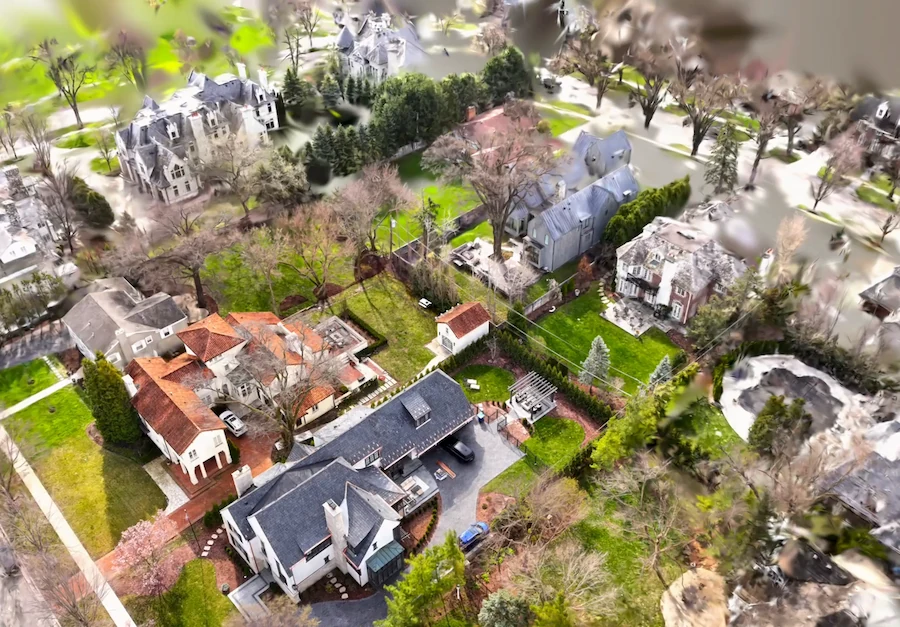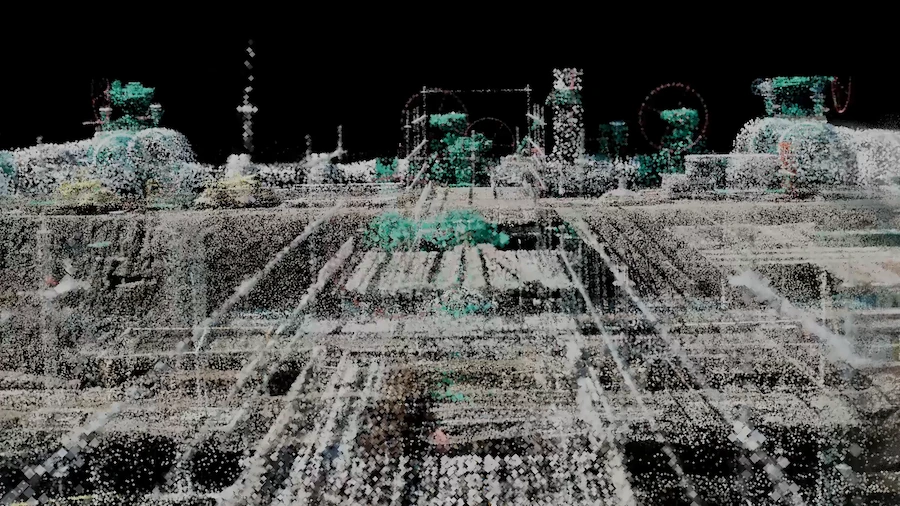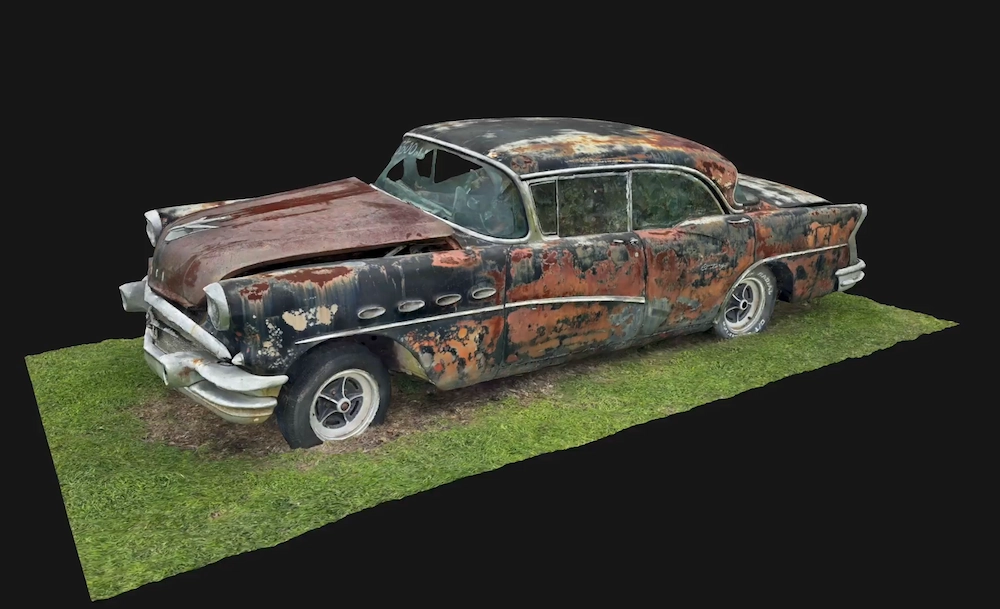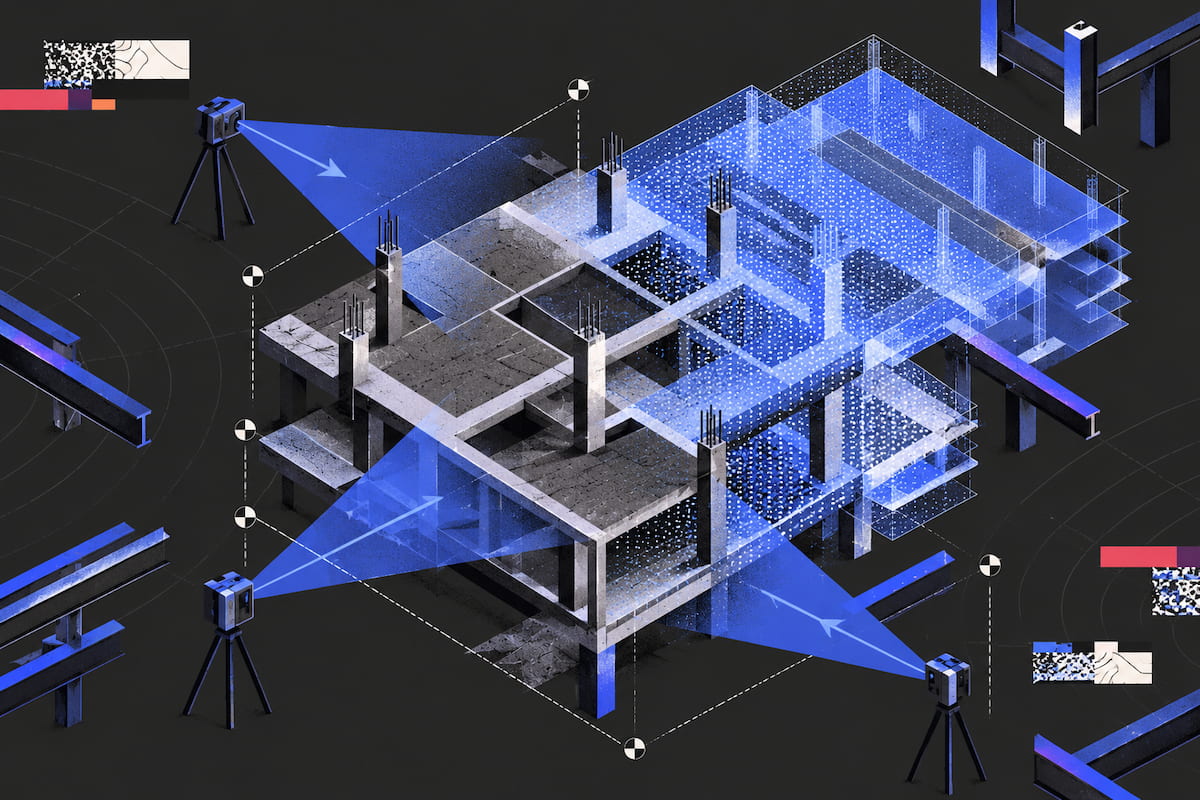
Track construction progress with 3D scans by making the capture repeatable: the same path, the same control points, the same zones, on a fixed cadence, named and versioned so this week's scan lines up with last week's. The geometry is the easy part. What makes progress tracking work is that two scans of the same slab are comparable, and that someone can open them side by side and answer one question: is the work that was supposed to be there actually there, and in the right place. This is that workflow, from the capture plan to the page a superintendent acts on.
What a Scan Gives You for Progress, and What It Doesn't
A scan produces a timestamped, measurable record of a physical condition: a mesh, a point cloud, a floor plan, and dimension strings you can pull from any of them. Because it is measured rather than photographed, you can check position and not just appearance. A wall is 12 feet 3 inches from grid B and the model says 12 feet. That gap is the conversation.
What a scan does not do is know your schedule. Nothing inside the file states that a zone was due on the 14th, which trade was responsible, or that the install is 60 percent complete. Polycam does not tag trades or calculate percent complete, and it does not diff one period against another for you. You assemble that comparison, and the discipline below exists to keep the cost of assembling it small enough that it happens every week.
If you are still choosing between a tool that captures geometry and one built around a 360 walkthrough, that decision belongs elsewhere: Polycam vs OpenSpace covers it. Assume the tool is chosen. This is what you do with it on a Tuesday.
Step 1: Write the Capture Plan Before the First Walk
One page, agreed before mobilization, covering five things: the zones, the walk order, the cadence, who holds the device, and what the deliverable looks like at the end of each period. Without it you get captures that are technically good and practically useless, because nobody agreed what would be measured.
Define zones by floor and grid bay, never by trade. A zone has to survive the whole job with the same boundaries, or the comparison breaks around week six when the drywall crew's area stops matching the electrician's. Number floors the way the drawings do, including the ones that will be called mezzanine later.
Then set the cadence. Four patterns cover most jobs:
| Cadence | What it is for | Zones covered | Who reads it |
|---|---|---|---|
| Weekly walk | Framing, drywall, MEP rough-in, fit-out | Every zone on the floors being worked | Superintendent, PM, trade leads |
| Milestone capture | Pour, pre-close-in, above-ceiling, substantial completion | Whole floor, plus anything about to be covered | Owner, architect, inspector, lender |
| Monthly | Slow phases, long-lead installs, envelope | Zones with visible change since the last capture | PM, owner reporting |
| Event-driven | Change order, dispute, incident, pre-demolition | Only the zone named in the event | PM, claims, legal |
Weekly is the right default for anything moving fast, because the useful comparison is against a state you can still change. Milestone captures handle the other job: recording a condition about to become inaccessible. The above-ceiling scan before the grid goes in and the in-wall scan before board are the two that get skipped, and the two that get missed during a dispute. Once the ceiling closes, no later scan recovers what was up there.
If this is the first capture on the job, the sequence for a baseline walk is covered in the site survey workflow guide. Treat that baseline as period zero, captured to the same rules as everything after it.
Step 2: Fix the Path and the Control Points
The comparison is positional, so the path has to be repeatable. Enter the zone at the same door, walk the perimeter in the same direction at a steady pace with the device angled inward, cross the middle, then close on the walls you intend to measure. Space mode establishes your position during the scan itself, so there is nothing to set up first. Start in a different corner each visit and you spend the review rotating models instead of reading them.
Pick three to five control points per floor that will exist for the duration: column line intersections, a door frame that is not moving, the corner of the stair core, a mark you set on the slab with paint. Name them once, log them, hit all of them every period. They give you a fixed place to measure from so the numbers are comparable week to week, and a way to align the capture to the model later.
Keep the device close. Polycam's accuracy documentation puts the sensor's useful zone at roughly 3 to 6 feet from a surface, with reliable geometry dropping off past about 16 feet, so backing up for a wider view buys you a worse scan. Walk the zone at the distance you would stand from a wall to read a level.
Two mechanics worth knowing before the first walk. Space mode works on a LiDAR-equipped iPhone Pro or iPad Pro, and there is a non-LiDAR Space capture for devices without one, slower but usable for documentation. On a large floor, split the work rather than pushing one session past about 20,000 square feet, and use Extend to pick up an unfinished session later instead of starting a second file that has to be reconciled.
Step 3: Capture the Right Things in Each Zone
This checklist is where the workflow either produces evidence or produces a good-looking model nobody opens. Run it in the same order every visit, so a gap is visible rather than discovered three weeks later.
- Slab and deck: one continuous path across the deck, edges included. This is the level surface every later comparison sits on.
- Walls and framing: both faces, waist to eye height, plus the top plate. Stud spacing and plate height show up here and not in a wide shot.
- Openings: each door and window head-on, frame in view. Widths and head heights are what the drawing check turns on.
- Overhead MEP: tilt up and walk the zone deliberately. Rework hides above eye level and disappears at close-in.
- Floor to deck: three or four fixed spots per zone, measured every period. One number that tracks progress without interpretation.
- Corners and returns: close, from two angles, because that is where framing and board go out of square.
- Temporary works: shoring, bracing, props, hoarding. They explain a condition that later looks like a defect.
The overhead pass is what separates a useful capture from a decorative one. A scan taken at chest height records the floor, the lower walls and very little of the work being coordinated. Tilt up and walk the zone deliberately, twice if the ceiling is congested.
Scan anything about to be covered twice: once from a wide position for context, once close for the detail. The wide capture answers where, the close capture answers what. The second is cheap while you are standing there and impossible afterwards.
Check the preview before you leave the floor: holes, pale patches where the sensor lost the surface, a zone you skipped. On a site where a return trip costs a day, five minutes at the point of capture is the highest-return step here.
Step 4: Name and Version So Periods Line Up
Use a fixed, sortable string: project code, zone code, ISO date, capture type, revision. Something like PRJ04-L03-Z07-2026-10-12-SPACE-r0. The ISO date sorts correctly in any file browser and spreadsheet.
Teams that hand information to a BIM group are usually already inside a naming convention. The ISO 19650 field structure runs project, originator, volume or system, level or location, type, role, number, with suitability and revision held as metadata. If your project has one, use it and let the zone code be the location field. What matters is that the same fields are populated the same way every period, not which convention you borrowed.
Never overwrite last week's capture. A re-scan is a new capture with a new date, even if it happens the same day, because the reason you re-scanned is itself information.
Keep a capture log alongside the files, one row per capture: date, zone, who held the device, which device, path walked, control points hit, and anything missing. A CSV is enough. It lets a PM answer a question without opening a model, and it is the first thing asked for when a claim appears six months later. One folder per period, holding that period's captures and log rows, so review starts with "open week 34" rather than a search.
Step 5: Compare One Period to the Next
Every comparison answers three questions in order. Is it there. Is it where the drawing says. Has it changed since the last visit. The first is visual, the second is a measurement against the model, the third is two captures side by side.
Hold the frame constant. Open the same zone in both periods from the same viewpoint, with the section cut at the same height, and measure the same five dimensions as last time. Measure different things each week and you are collecting facts, not tracking progress. Record the viewpoints in the log next to the control points; the reviewer is often not the person who walked the floor.
Compare against the model as well as against last week. Last week tells you pace. The model tells you position, and position is what generates an RFI while the work is still open. A wall that moved 4 inches looks fine next to last week's wall and wrong next to the grid line.
When you find something, hold the view. Saved Views keep the exact camera position and orientation on the capture, so next week's review opens the same frame and shows whether the issue was resolved. A flagged issue without a saved view turns into an argument about which corner of which room.
The manual part is worth stating plainly. Polycam does not compute a variance, score the schedule, or flag what changed between two captures. The comparison is you, two records and a consistent frame, which is why the fixed path and control points matter more than the resolution of the mesh.
Step 6: Hand Off to the Superintendent and the Model
The deliverable is not the scan. It is a page that fits on a tablet and answers what gets asked in a coordination meeting. Per floor, per period: the date, the zone, two or three views that show the work, the five dimensions, and the open issues with the saved view for each.
Attach a share link to the capture. Polycam captures share as public or private links depending on your plan, and a public link lets a trade lead or an owner's rep walk the space in a browser without an account or software, which is usually the difference between a question answered today and one answered after the next site visit.
Virtual Walkthrough resolves the small stuff without a trip. It retraces the capture path and places the original high-resolution photographs where you took them, so a model number, a label or a thin conduit the mesh lost is still readable. It sits on Business and Enterprise plans and works with Space mode captures. Use it before you schedule a visit to check a detail, not after.
For the model, the route is export and convert: LAS out of Polycam, through Autodesk ReCap to RCS or RCP, then linked in Revit through Insert > Point Cloud. Name that file with the same period code as the capture, so model history and capture log tell the same story when someone opens the project in a year. The scan to Revit workflow covers the conversion and the QA steps.
For drawing sets and meetings the floor plan exports matter more than the mesh: DXF or DWG for anyone drafting, PDF for the set and the OAC pack, a CSV of measured areas for the quantity conversation. Send the scan with the drawing, not instead of it. The drawing says what was intended, the scan says what is there, and the gap is the progress report.
FAQ
How do I track construction progress with 3D scans?
Scan the same zones, along the same path, from the same control points, on a fixed cadence, then compare each capture with the previous one and with the design model. The repeatability is what makes the comparison possible; the scan itself is the easy part.
How often should I scan a job site for progress?
Weekly on floors where framing, drywall, or MEP rough-in is moving, so the comparison is against a condition you can still change. Add milestone captures before anything gets covered, such as above-ceiling and in-wall, and a monthly pass on slow phases.
What are control points in a progress scan?
Three to five fixed features per floor that will exist for the whole job, such as column line intersections, a door frame, or a mark painted on the slab. You measure from them every period and use them to align the capture to the model later.
Can Polycam compare two scans and show what changed?
Not automatically. Polycam captures and stores the geometry, and you compare periods yourself using the same viewpoints and section cuts, with Saved Views holding the frames you are tracking. There is no built-in variance or schedule analytics.
What should I scan before the ceiling closes?
The overhead MEP, the hangers and supports, the top of wall and any firestopping, plus the floor-to-deck heights at your fixed points. Once the grid and board are in, that condition is gone and no later scan recovers it.
How do I get progress scans into Revit?
Export the capture from Polycam as LAS, convert it to RCS or RCP in Autodesk ReCap, then link it into Revit with Insert > Point Cloud. Polycam does not import into Revit directly.